Step 1
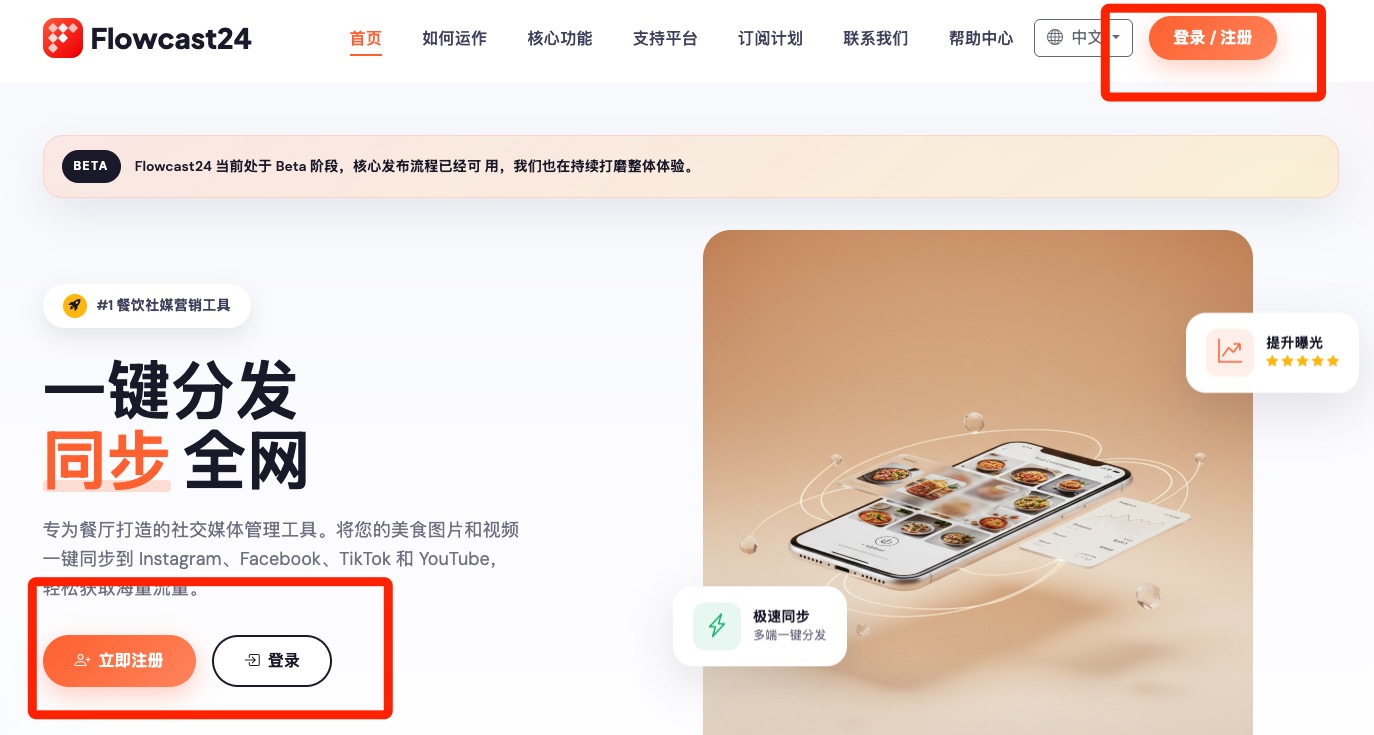
Open Login/Register
From the landing page, choose Login/Register in the top navigation to open the account entry page.
How can we help you? Search for setup, billing, publishing, and troubleshooting answers.
Try keywords like account, payment, invoice, publishing, or connection.
FAQ and quick answers
Use these steps to create your Flowcast24 account or return to the dashboard with an existing login.
From the landing page, choose Login/Register in the top navigation to open the account entry page.
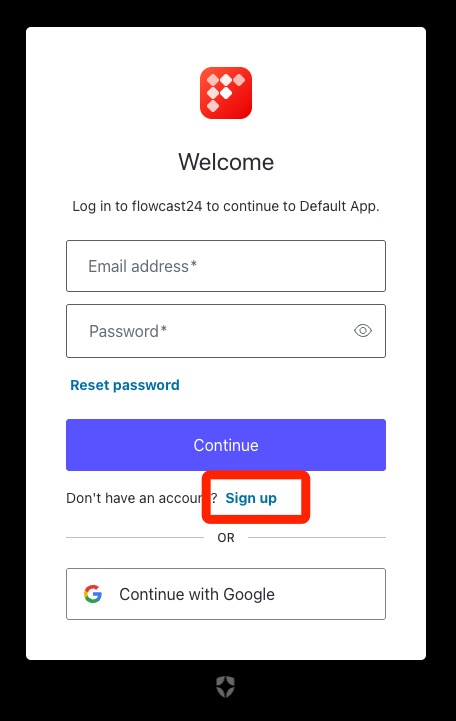
Enter your email and password to log in, or sign in directly with your Google account. New users can follow the registration link on the same page.
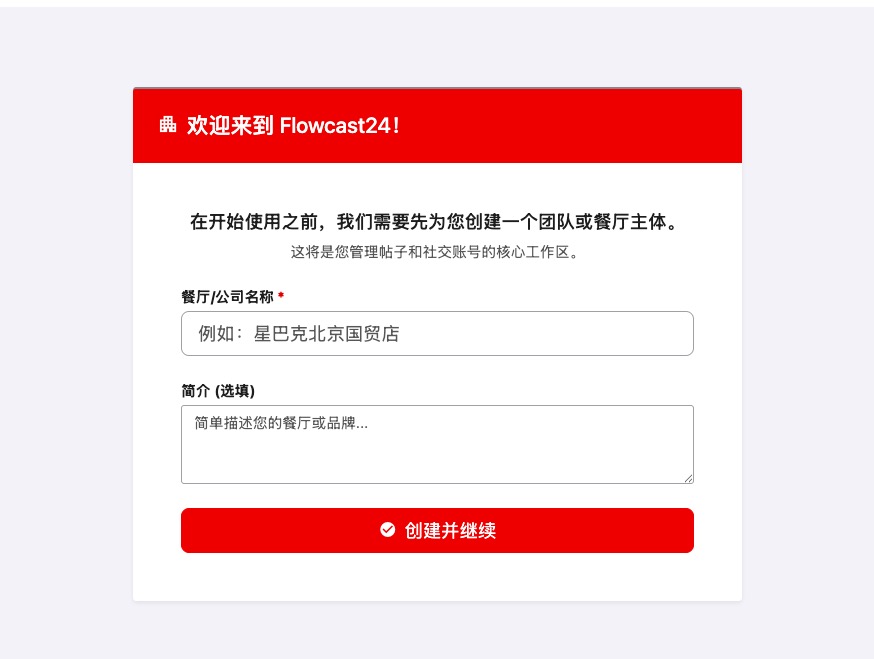
After you create a company, bind each platform account from the dashboard so Flowcast24 can publish for the right team or restaurant.
If the dashboard asks for setup, add your company or restaurant name first. This workspace is where your connected social accounts will be stored.
From the dashboard setup tasks, choose the social account connection task. Then select the platform card for TikTok, Instagram, Facebook, or YouTube and click Bind account.
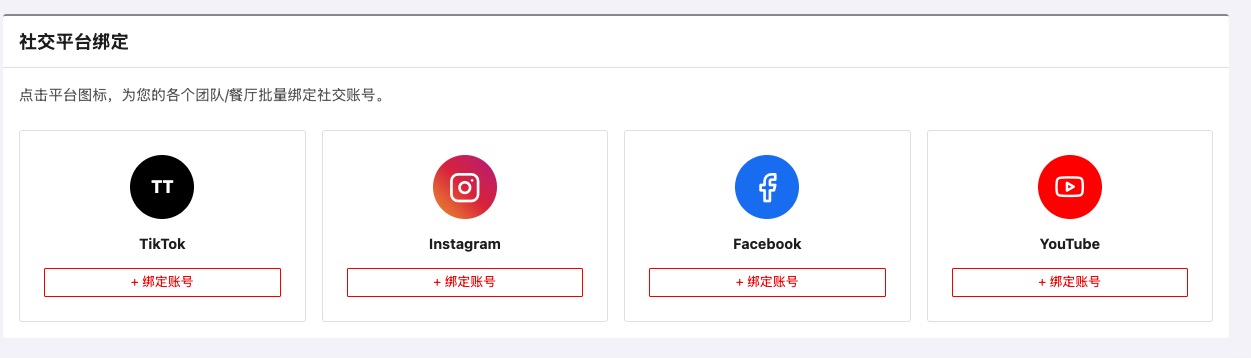
Choose Instagram on the social platform binding page, select the company or restaurant, continue through the Meta authorization flow, approve the requested permissions, and confirm Instagram appears in the bound platforms list.
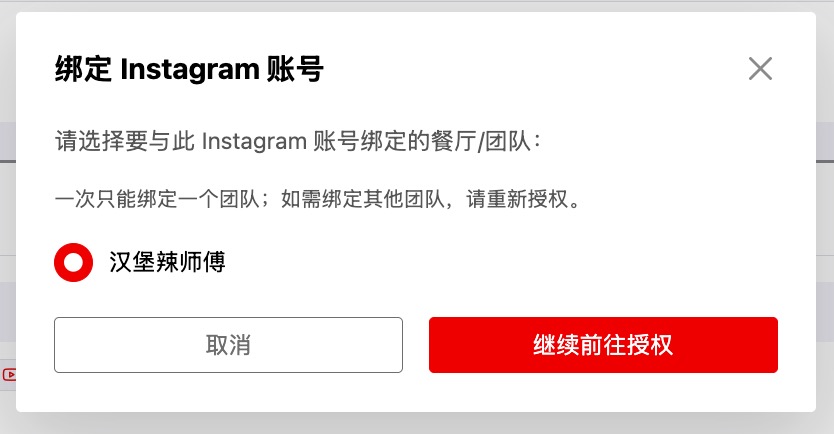
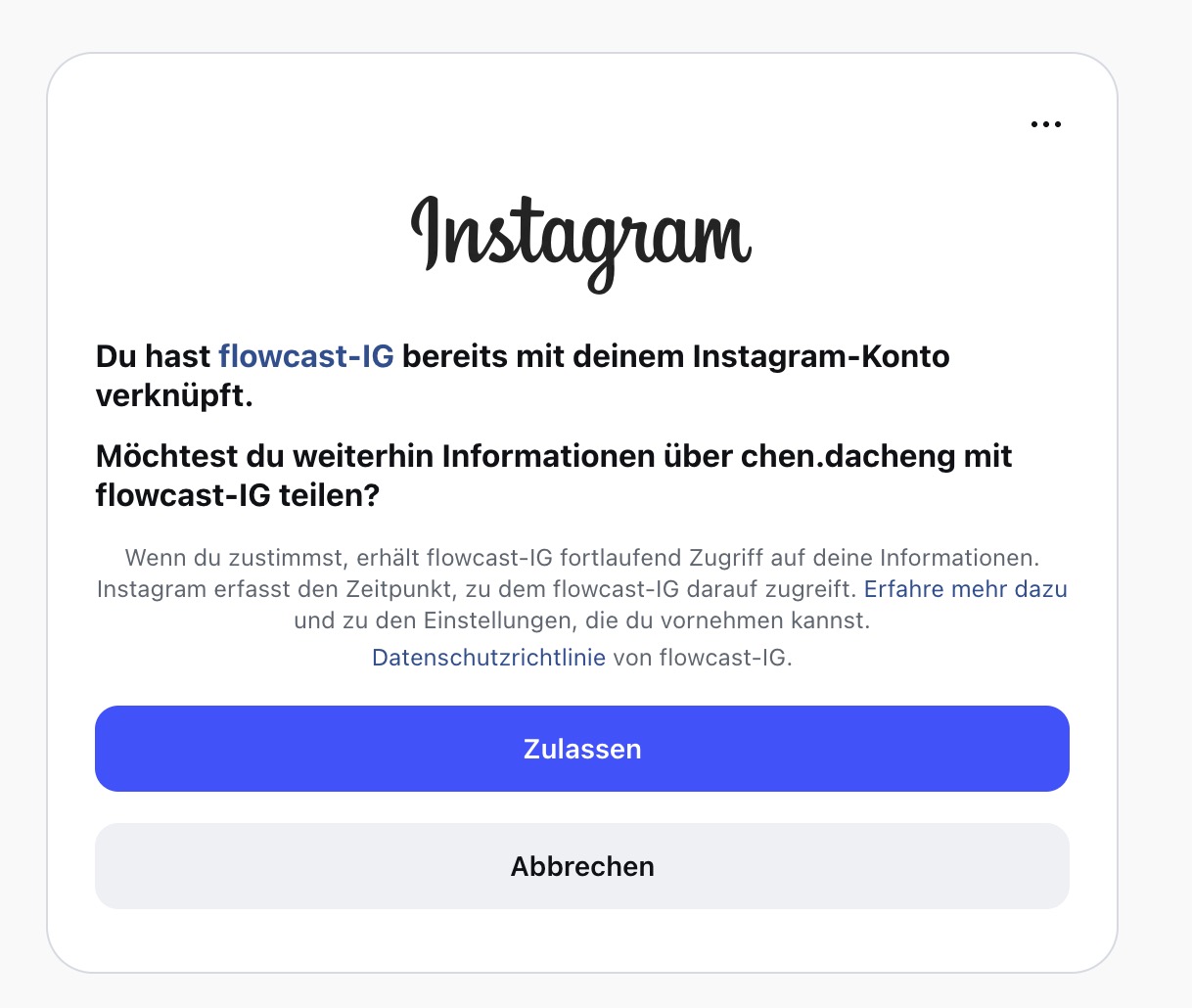
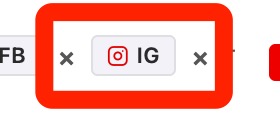
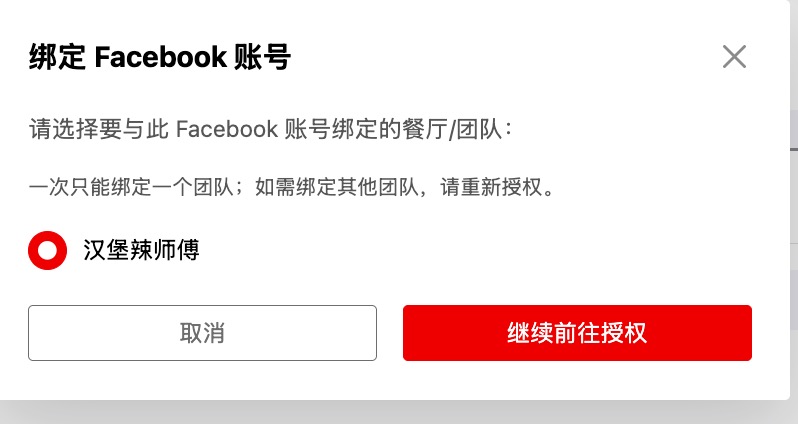
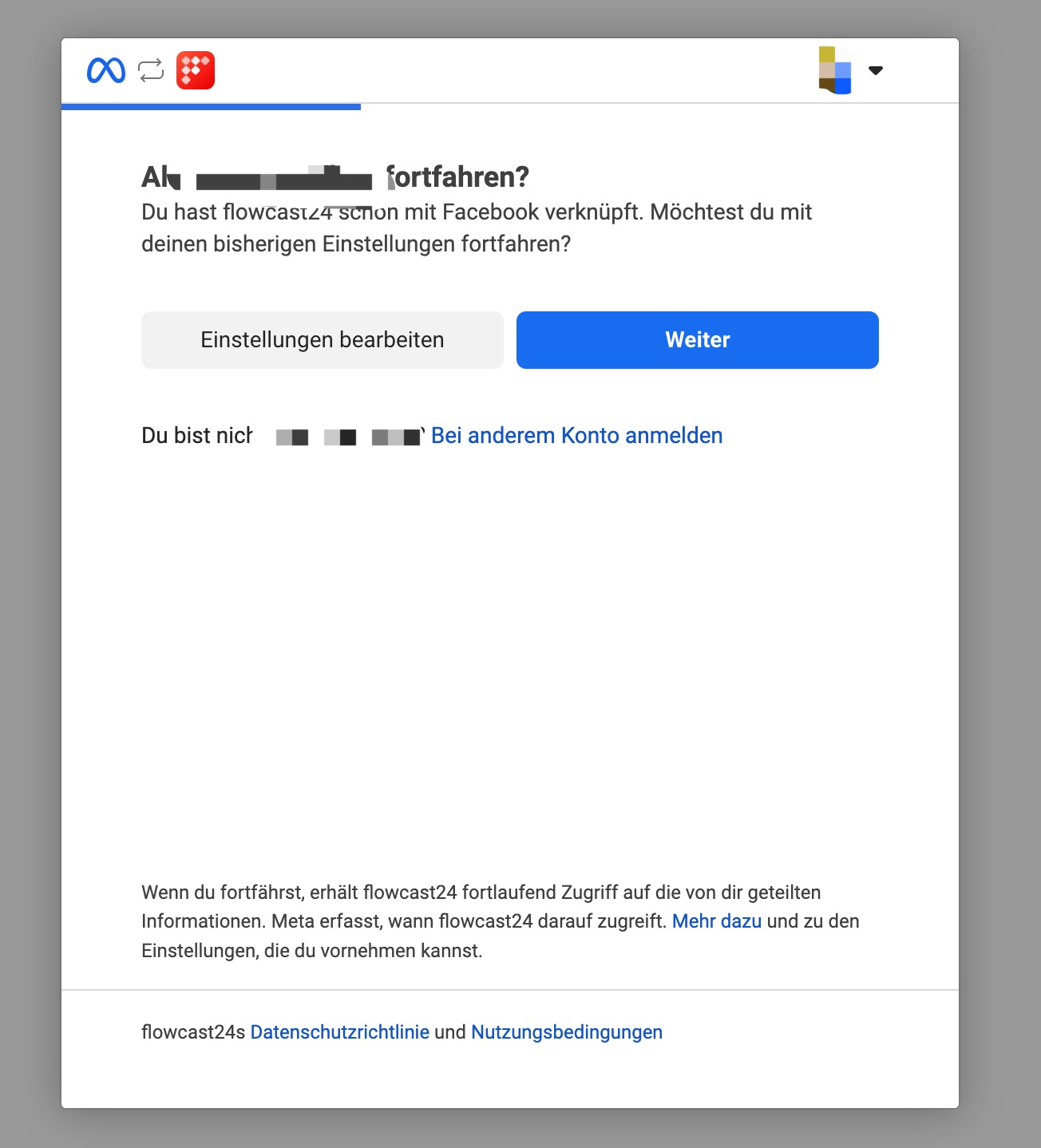
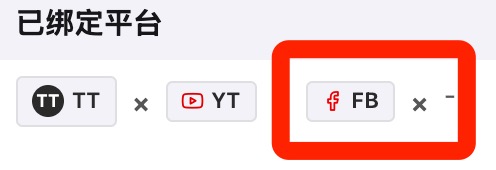
Choose Facebook on the social platform binding page, select the company or restaurant, continue through the Facebook authorization flow, approve the requested permissions, and confirm Facebook appears in the bound platforms list.
Facebook note: Flowcast24 can publish images and videos to Facebook Pages only, not private profiles. If you currently use a personal profile for your business, create a Facebook Page or switch into an existing Page first, then connect that Page in Flowcast24. Switch into a Facebook Page Create posts for a Facebook Page
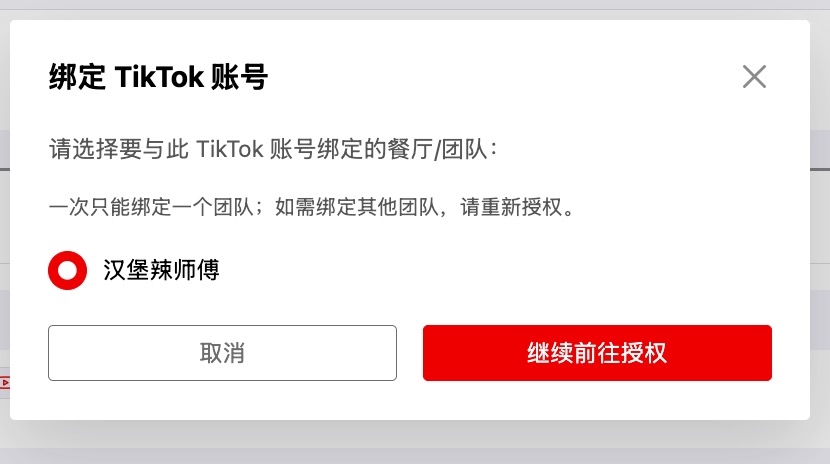
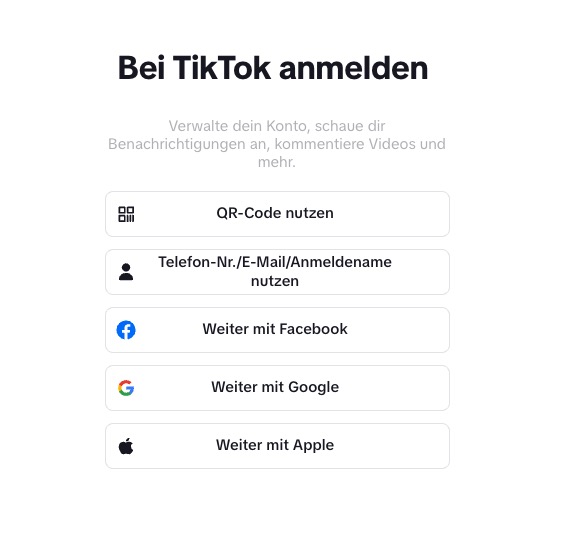
Choose the company or restaurant to bind, continue to TikTok authorization, sign in with your TikTok login method, approve the permissions, and confirm TikTok appears under the bound platforms list.
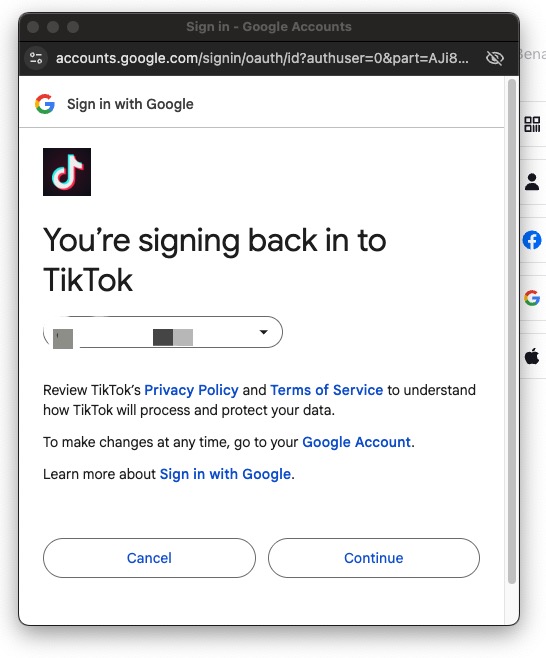
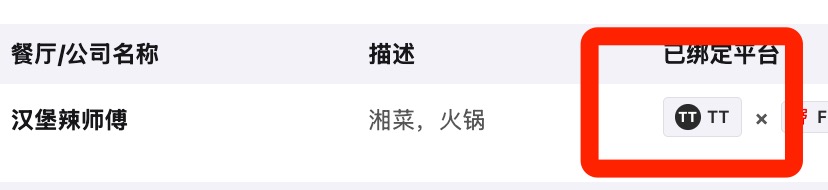
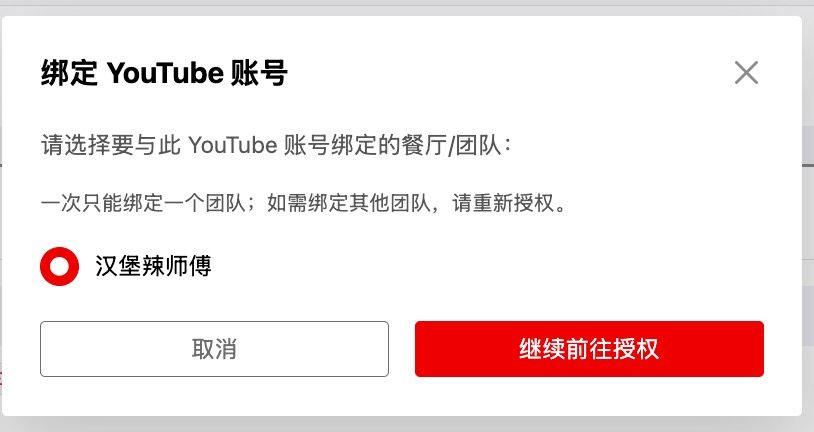
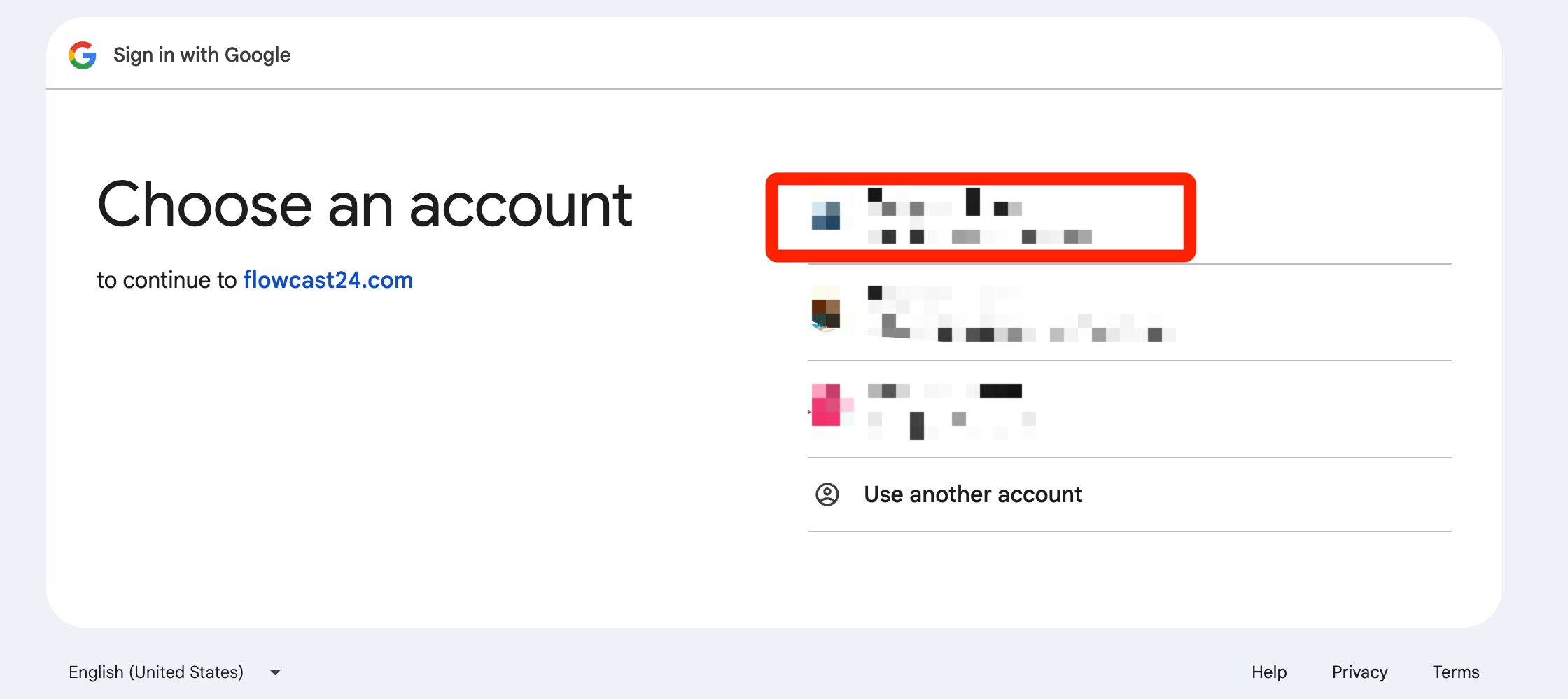
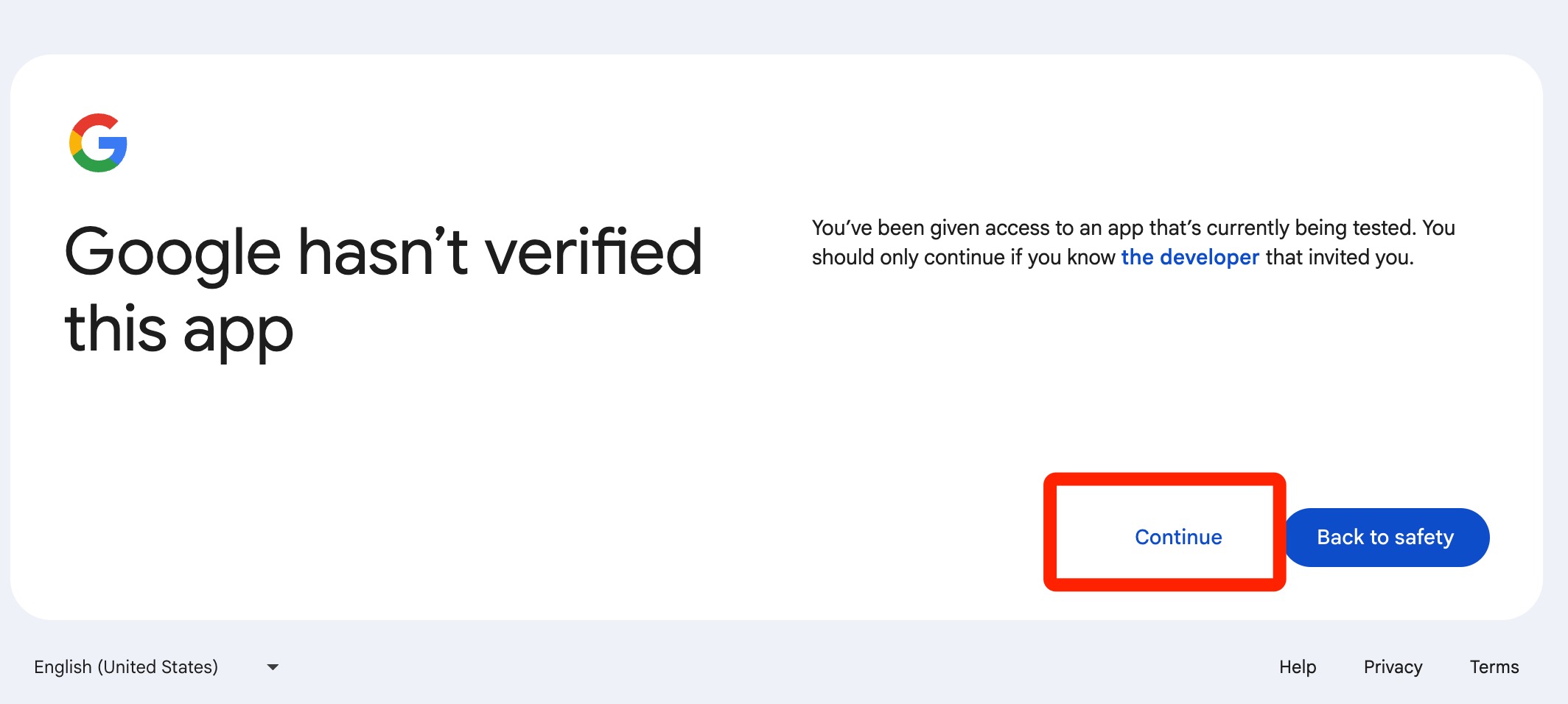
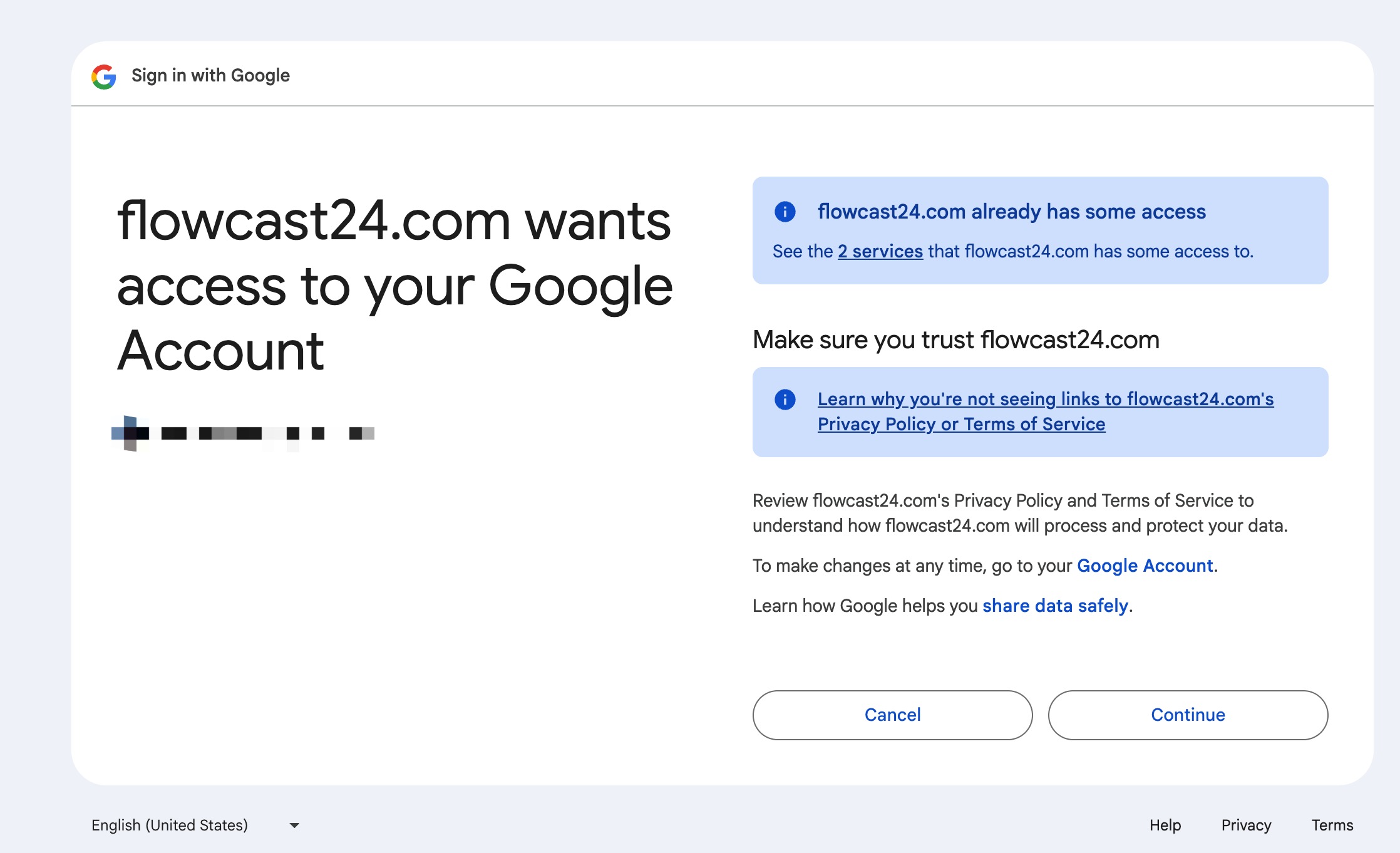
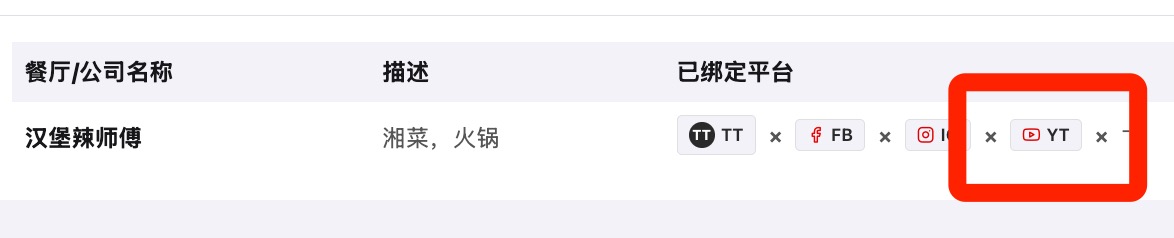
Choose YouTube on the social platform binding page, select the company or restaurant, continue to Google authorization, choose the Google account for the YouTube channel, continue through the Google app notice if shown, approve access, and confirm YouTube appears in the bound platforms list.
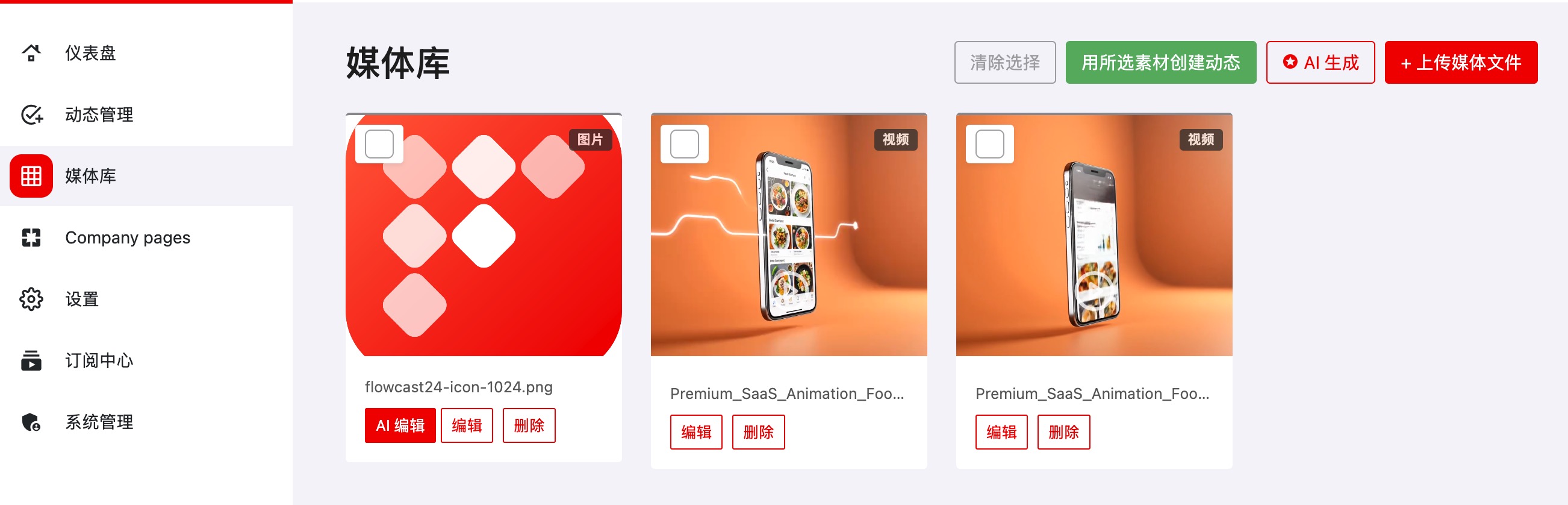
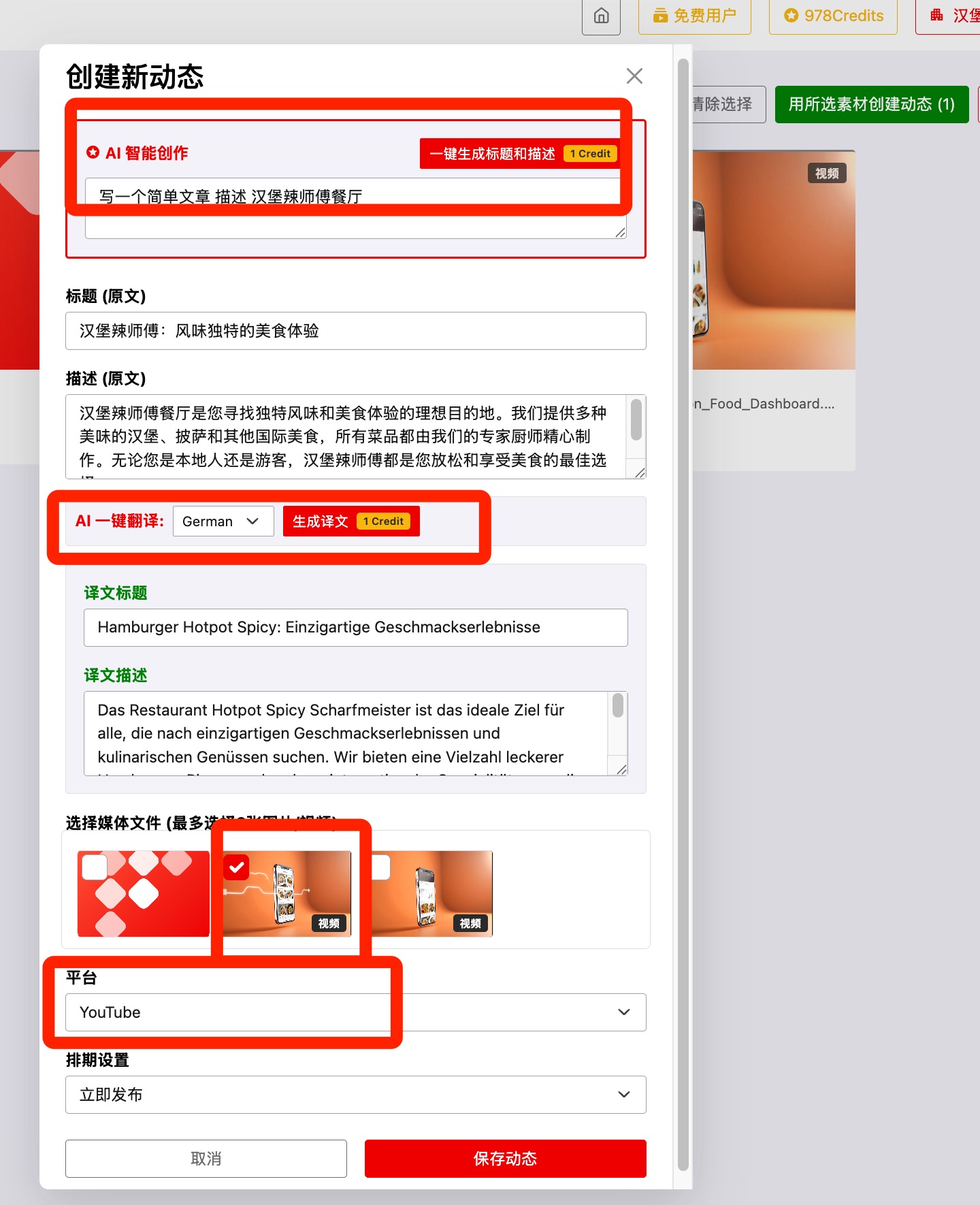
Use these steps to turn selected media into a platform post with AI-assisted copy, translation, platform selection, and post management confirmation.
Start from the media library or post management area, select the media you want to use, prepare the title and description, choose a publishing platform, then save the post and confirm it appears in post management.

Find quick answers for account access, orders, payments, and technical questions.
Try another keyword or contact support for direct help.
Start from the media library or post management area, select the media you want to use, prepare the title and description, choose a publishing platform, then save the post and confirm it appears in post management.
Send our team a short note and we will help you get back to publishing.
info@flowcast24.com
Usually within one business day
We never ask for your password.
Social accounts
Open social platform binding from the dashboard, choose TikTok, select the company or restaurant, continue to TikTok authorization, sign in, approve the permissions, and confirm TikTok appears in the bound platforms list.
Choose Instagram on the social platform binding page, select the company or restaurant, continue through the Meta authorization flow, approve the requested permissions, and confirm Instagram appears in the bound platforms list.
Choose YouTube on the social platform binding page, select the company or restaurant, continue to Google authorization, choose the Google account for the YouTube channel, continue through the Google app notice if shown, approve access, and confirm YouTube appears in the bound platforms list.
Choose Facebook on the social platform binding page, select the company or restaurant, continue through the Facebook authorization flow, approve the requested permissions, and confirm Facebook appears in the bound platforms list.
Facebook note: Flowcast24 can publish images and videos to Facebook Pages only, not private profiles. If you currently use a personal profile for your business, create a Facebook Page or switch into an existing Page first, then connect that Page in Flowcast24. Switch into a Facebook Page · Create posts for a Facebook Page